Tuesday, July 20, 2010

CREATE SEARCH HELP - ABAP DATA DICTIONARY

1)  FIRST OF ALL IN EASY ACCESS SCREEN   ENTER  TCODE   SE11   ,  AND CHOOSE         SEARCH HELP AND GIVE ANY NAME   NOW CLICK ON CREATE .


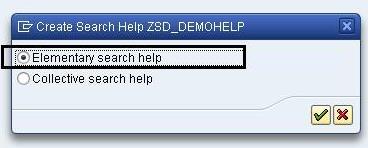
2) THERE ARE TWO TYPES OF SEARCH HELPS  ONE IS COLLECTIVE SEARCH HELP           AND    THE OTHER IS ELEMENTARY SEARCH HELP.

ELEMENTARY SEARCH HELP : DEPENDS ON ONE TABLE
COLLECTIVE SEARCH HELP : DEPENDS ON MORE THAN ONE ELEMENTARY SEARCH HELP

NOW SELECT ELEMNATARY  SEARCH HELP.


3 )   NOW GIVE A SHORT DISCRIPTION IN THE SCREEN AND  CLICK ON SELECTION METHOD. CLICK ON SEARCH FOR TABLES.


4 ) GIVE THE TABLE NAME WHERE YOU WOULD LIKE TO ATTACH SEARCH HELP AND CLICK ENTER.


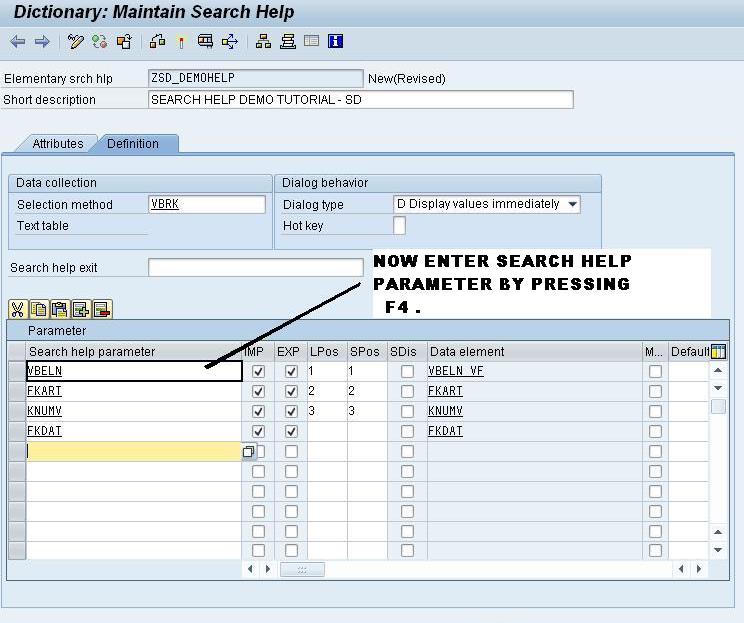
5 ) NOW ENTER SEARCH HELP PARAMETERS BY PRESSING FUNCTIN KEY  F4 .


6 ) NOW SAVE , ACTIVATE AND TEST THE SEARCH HELP.


Friday, July 16, 2010

MAKING COLUMNS IN SMARTFORMS

1 )  Now one of the important process of smartform is making column. So we are going to make column in our smartforms.

the process is quite simple, first let’s open your SmartForms, you can create a SmartForms using TCODE Smartforms and just create a new report there.

Before drawing the table columns, you must create the table first by right clicking the main window --> Create --> Table.


Next you have to click on the pencil button on the table tab.


Now you can draw the columns by clicking and dragging the pencil on the table boxes, this will create a table line that will be used to create the report columns.


Now to show the columns you just drew, right click the table, select TABLE -- > Create TABLE LINE. Thenin the output table select the linetype.


Now you see there are 4 columns from the table line we just drew earlier.


So Only few clicks and tricks can make columns in your SMARTFORMS.

CREATE PHYSICAL INVENTORY - MM

TCODE : MI01

USING
MENU:-Logistic-->Material Management-->Physical Inventory-->Physical Inventory Document

Generally Create Physical inventory document is a process to create document for the physical inventory checking. (Stock up and down)


1. Plant: The plant where the stock checking is conducted.


2. Storage Location: Warehouse where the material is located.

3. Posting Block: The block utility so that the material can not be used for any transaction during the physical stock checking process.

4. Freeze book inventory: As a cut off for the stock checking. (The item that has the status “Freeze” still can be used for transaction)


Note: You can’t used both (posting block and freeze book inventory) at the same time.


Click enter to continue.


1. Select the material number.


2. Input the batch/lot number (this data will be automatically filled after you’ve selected the material number)


CTRL+S to save.


Now a new physical inventory document has been created successfully.

Thursday, July 15, 2010

HOW TO INSERT LOGO IN SMARTFORMS

SMART FORM IS GENERALLY USED FOR TO CREATE AND MAINTAIN MASS PRINTING . AND ALSO IT IS USED FOR SIMPLE MODIFICATION TO THE FORM .

SAP SMART FORMS  ALLOW  THE FORM LOGIC BY USING SIMPLE GRAPHICAL TOOLS.

IN SAP we have a place to store all the images that we want to use in the form application, it’s called the Administration of Form Graphics.


Before you can add logo/graphic into your Smartforms, first you need to upload the file into the bitmap folder in SAP.

1. Execute SE78

Expand the Stored Document Server --> Graphics --> BMAP Bitmap Images.

Now you need to name your graphic first, in this tutorial I typed in CREATELOGO as my graphic name, this name also serves as graphic ID.


2. Now click on Graphic --> Import or just press F5 to browse your graphic file.


Click the browse button the filename box, and just find the image that you want to stored/upload. In this tutorial I want to keep the color of my image so I choose Color Bitmap Image.


Remember that your image/graphic should have a Bitmap filetype (.BMP). MIND IT ONLY .BMP FILE FORMATES ARE SUPPORTED . if you have other filetype then you need to convert it first before uploading the image.
After you done, just press enter or click the Ok button. You should see the message on the status bar “Graphic xxxxx was imported”. It means that now it’s stored and ready to use.

CLICK ON IMPORT BUTTON

3. Open you smartforms, right click the %PAGE section, select CREATE --> Graphic.


4. Now just type in the file name we created earlier in step 1. Choose “GRAPHICS” as the object, and “BMAP” as the ID.

Choose the Color Bitmap Image to maintain its color.


5. After that, just click SAVE and Activate the SmartForms, test the SmartForms (F8), and here’s the result.

Tuesday, July 13, 2010

GET PROGRAM NAME FROM TCODE

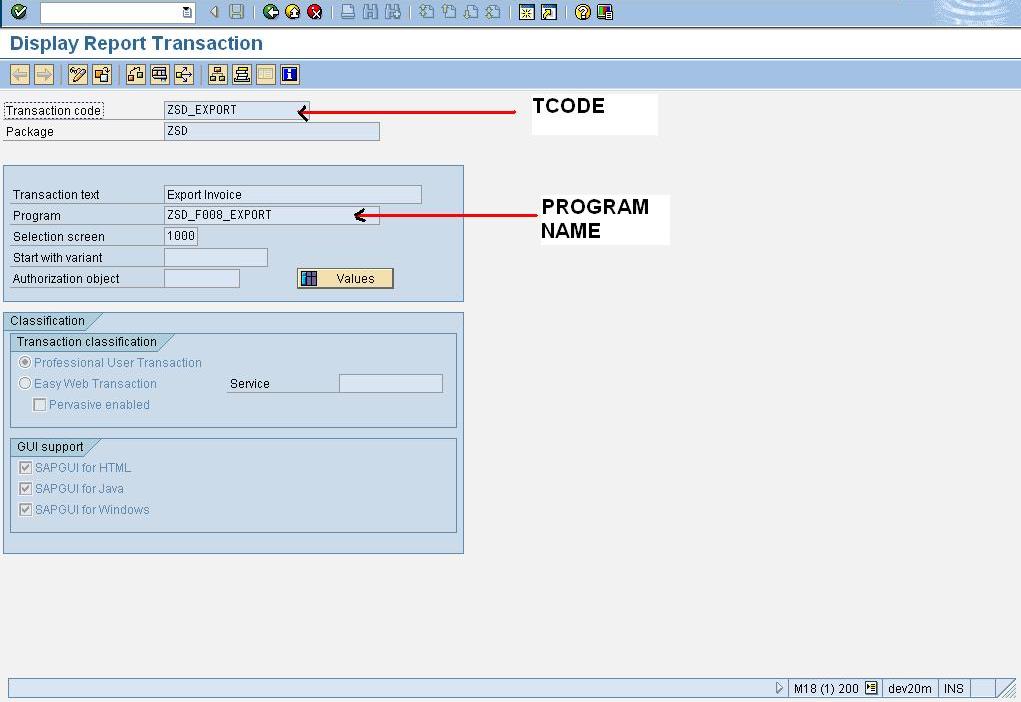
  1. 1 FIRST GO TO THE SE93 TRANSACTION


2) THEN FIRST ENTER THE TCODE OF PROGRAM AND CLICK ON DISPLAY


3) nOW YOU CAN SEE
  • PROGRAM
  • PACKAGE
  • TCODE
  • DESCRIPTION
  • AUTORIZATION OBJECT
  • SELECTION SCREEN


SO ONE CAN EASILY CUSTOMIZE CODE USING PROPER AUTHORIZATION.

Monday, June 21, 2010

Tuesday, June 15, 2010

SD RELATED TCODES

SAP SD related transaction codesCustomerXD01 Create Customer (Centrally)XD02 Change Customer (Centrally)XD03 Display Customer (Centrally)XD04 Customer Changes (Centrally)XD05 Block customer (centrally)XD06 Mark customer for deletion (centr.)XD07 Change Customer Account GroupXD99 Customer master mass maintenanceXDN1 Maintain Number Ranges (Customer)VendorXEIP Number range maintenance: EXPIMPXK01 Create vendor (centrally)XK02 Change vendor (centrally)XK03 Display vendor (centrally)XK04 Vendor Changes (Centrally)XK05 Block Vendor (Centrally)XK06 Mark vendor for deletion (centrally)XK07 Change vendor account groupSales OrderVA00 Initial Sales MenuVA01 Create Sales OrderVA02 Change Sales OrderVA03 Display Sales OrderVA05 List of Sales OrdersVA07 Compare Sales - Purchasing (Order)VA08 Compare Sales - Purchasing (Org.Dt.)InquiryVA11 Create InquiryVA12 Change InquiryVA13 Display InquiryVA14L Sales Documents Blocked for DeliveryVA15 Inquiries ListQuotationVA21 Create QuotationVA22 Change QuotationVA23 Display QuotationVA25 Quotations ListVA26 Collective Processing for QuotationsContractVA41 Create ContractVA42 Change ContractVA42W Workflow for master contractVA43 Display ContractVA44 Actual Overhead: Sales OrderVA45 List of ContractsVA46 Coll.Subseq.Processing f.ContractsItem ProposalVA51 Create Item ProposalVA52 Change Item ProposalVA53 Display Item ProposalVA55 List of Item ProposalsVA88 Actual Settlement: Sales OrdersDelivery (Outbound)VL00 ShippingVL01 Create DeliveryVL01N Create Outbound Dlv. with Order Ref.VL01NO Create Outbound Dlv. w/o Order Ref.VL02 Change Outbound DeliveryVL02N Change Outbound DeliveryVL03 Display Outbound DeliveryVL03N Display Outbound DeliveryVL04 Process Delivery Due ListVL06 Delivery MonitorVL06C List Outbound Dlvs for ConfirmationVL06D Outbound Deliveries for DistributionVL06F General delivery list - Outb.deliv.VL06G List of Oubound Dlvs for Goods IssueVL06I Inbound Delivery MonitorVL06IC Confirmation of putaway inb. deliv.VL06ID Inbound Deliveries for DistributionVL06IF Selection inbound deliveriesVL06IG Inbound deliveries for goods receiptVL06IP Inbound deliveries for putawayVL06L Outbound Deliveries to be LoadedVL06O Outbound Delivery MonitorVL06P List of Outbound Dlvs for PickingVL06T List Outbound Dlvs (Trans. Planning)VL06U List of Uncheckd Outbound DeliveriesVL08 Confirmation of Picking RequestVL09 Cancel Goods Issue for Delivery NoteVL10 Edit User-specific Delivery ListVL10A Sales Orders Due for DeliveryVL10B Purchase Orders Due for DeliveryCustomer managementFD01 Create Customer (Accounting)FD02 Change Customer (Accounting)FD02CORE Maintain customerFD03 Display Customer (Accounting)FD04 Customer Changes (Accounting)FD05 Block Customer (Accounting)FD06 Mark Customer for Deletion (Acctng)FD08 Confirm Customer Individually(Actng)FD09 Confirm Customer List (Accounting)FD10 Customer Account BalanceFD10N Customer Balance DisplayFD10NA Customer Bal. Display with WorklistFD10NET Customer Balance DisplayFD11 Customer Account AnalysisFD15 Transfer customer changes: sendFD16 Transfer customer changes: receiveFD24 Credit Limit ChangesFD32 Change Customer Credit ManagementFD33 Display Customer Credit ManagementFD37 Credit Management Mass ChangePricingV/03 Create Condition Table (SD Price)V/04 Change Condition Table (Sales pr.)V/05 Display Condition Table: (Sales Pr.)V/06 Condition Categories: SD PricingV/07 Maintain Access (Sales Price)V/08 Conditions: Procedure for A VV/09 Condition Types: Account Determin.V/10 Account Determination: Access SeqncV/11 Conditions: Account Determin.Proced.V/12 Account Determination: Create TableV/13 Account Determination: Change TableV/14 Account Determination: Display TableBOMCS00 BOM MenuCS01 Create Material BOMCS02 Change Material BOMCS03 Display Material BOMCS05 Change Material BOM GroupCS06 Display Material BOM GroupCS07 Allocate Material BOM to PlantCS08 Change Material BOM - Plant Alloc.CS09 Display Allocations to PlantCS11 Display BOM Level by LevelCS12 Multilevel BOMCS13 Summarized BOMCS14 BOM ComparisonCS15 Single-Level Where-Used ListCS20 Mass Change: Initial ScreenCS21 Mass Material Change: Initial ScreenCS22 Mass Document Change: Initial ScreenCS23 Mass Class Change: Initial ScreenCS25 Archiving for BOMsCS26 BOM deletionCS27 Retrieval of BOMsCS28 Archiving for BOMsCS31 Create class BOMCS32 Change class BOMCS33 Display class BOMCS40 Create Link to Configurable MaterialCS41 Change Material Config. AllocationCS42 Display Material Config. AssignmentCS51 Create standard BOMCS52 Change standard BOMCS53 Display standard BOMCS61 Create Order BOMCS62 Change Order BOMCS63 Display Order BOMCS71 Create WBS BOMCS72 Change WBS BOMCS73 Display WBS BOMCS74 Create multi-level WBS BOMCS75 Change multi-level WBS BOMCS76 Display multi-level WBS BOMCS80 Change Documents for Material BOMCS81 Change Documents for Standard BOMCS82 Change documents for sales order BOMCS83 Change documents for WBS BOMCS84 Change documents for class BOMCS90 Material BOM Number RangesCS91 Number Ranges for Standard BOMsCS92 Number Ranges for Sales Order BOMs